The editor
The editor is where a white label's page is composed: what the player sees, block by block, at every screen size. One page holds many views, and all of them live in one document.
Nothing you do here reaches a player until you press Publish.
Opening it
The editor is not in the sidebar. The way in is the page itself: open Operators, open the operator that owns it, then See its pages, then Customize on the page's row.
The address /composer is the shortcut. It opens the editor over the page
your account is working on — the one named in the card at the top of the
sidebar — so pick a page there first, or it asks you to.
Editing a page is a permission. Without it the editor refuses to open, and there is no read-only view of it.
A page that has nothing composed yet opens on a blank canvas, not on the starting-point gallery: the gallery is reached from the Templates pill in the bar, and picking one there replaces what the page already holds — see Templates.
The bar
One bar across the top, and it is the whole of the editor's chrome.

Left to right:
| Control | What it does |
|---|---|
| ← | Leaves the editor for the operator's pages, and asks first when there is unsaved work. Inside Templates or Themes it means something else: it returns to the canvas, keeping what you changed there. |
| The logo and the page's name | Which page you are composing. It is a link to that page's live site, in a new tab. The dot beside it reports the domain: green when it answers, red when it does not, grey while the check is still out. |
| ? | Replays this screen's tour. F1 does the same. |
| Editor · Templates · Themes | Templates and Themes each take the whole screen — see Templates and Themes. They are toggles: pressing the lit one returns to composing. Editor is the other way back, and it is drawn only while you are inside one of the two — while you compose it has nothing to do, so it is absent rather than dimmed. Switching mode folds the canvas first, so nothing in progress is lost. |
| Undo · Redo | Step back and forward through the canvas's changes. Ctrl+Z and Ctrl+Shift+Z do the same. Dimmed when there is nowhere to go. With the cursor inside a text, Ctrl+Z undoes your typing instead. |
| The view's name | In the middle of the bar, naming the view you are composing. It opens Views, where every view is listed, created, renamed, duplicated and deleted — see Navigation. Drawn only while composing. |
| The status | Where the work stands. The eight readings are below. |
| More | Two actions: Preview, the only screen that draws the page against the real catalogue, and Save as a template. |
| Publish | The one write on the screen. |
Saving and publishing
- Writes itself 900 ms after you stop changing anything.
- Catches every change: a block, a colour, a word, a sport icon, the menu order.
- No player sees it — what reaches a player is only what you published — though another back-office session that opens this page picks the draft up where you left it.
- There is no button for it, and none to look for.
- Folds the canvas, fills in the languages the page is missing, freezes a numbered version, and moves the live page to it.
- One button, one act: there is no separate save anywhere on the screen.
- Ctrl+S is this button. It publishes.
- Players see it the moment it lands.
The button at the right end of the bar reads Publish, and it is the only write the editor offers. Pressing it puts the page in front of players and says so: Published. Players now see this version.
Everything before that is the draft, and the draft looks after itself. It is written 900 ms after you stop — not on a clock, but after each pause — so walking away from a finished thought is enough to keep it.
Two habits are worth unlearning here. Ctrl+S is not a draft save: it runs the same act as the button, and the page goes live. And there is no save then publish sequence to follow — the two were merged into one act, so the single button does both.
To keep work without putting it in front of anyone, freeze a restore point in the Versions panel. That writes a numbered version and moves nothing — see Versions and publishing.
After a publish the button disables itself for 350 ms, so the second half of a double-click cannot publish twice.
What the status says
| Reading | What it means |
|---|---|
| All saved | Nothing is pending. |
| Unsaved changes | A write is armed and lands within a second. |
| Saving… | It is in flight. |
| Saved 14:32 | The draft is on the server. |
| Published (version 12) | Players see version 12. |
| Restore point 12 created | A version was frozen. Nothing went live. |
| Save failed | A card below carries the server's own reason and a way to retry. |
| Another session saved this page | Somebody else wrote this page. The automatic save has stopped and the only offered action is to reload — retrying from here would overwrite their work. |
The layout
- 1The barEverything the editor offers outside the canvas, on one line.
- 2The way outBack to the operator's pages — or back to the canvas, from Templates and Themes.
- 3The page's identityLogo, name, and the dot that says whether the domain answers.
- 4The mode pillsEditor, Templates, Themes. Each of the last two takes the whole screen.
- 5PublishThe only write. It freezes a version and puts the page live.
- 6The tab railAdd, Structure, Versions. The lit tab's panel opens beside it.
- 7The canvasThe page itself, edited by touching it.
- 8The settings columnThe selected block's settings. No selection, no column.
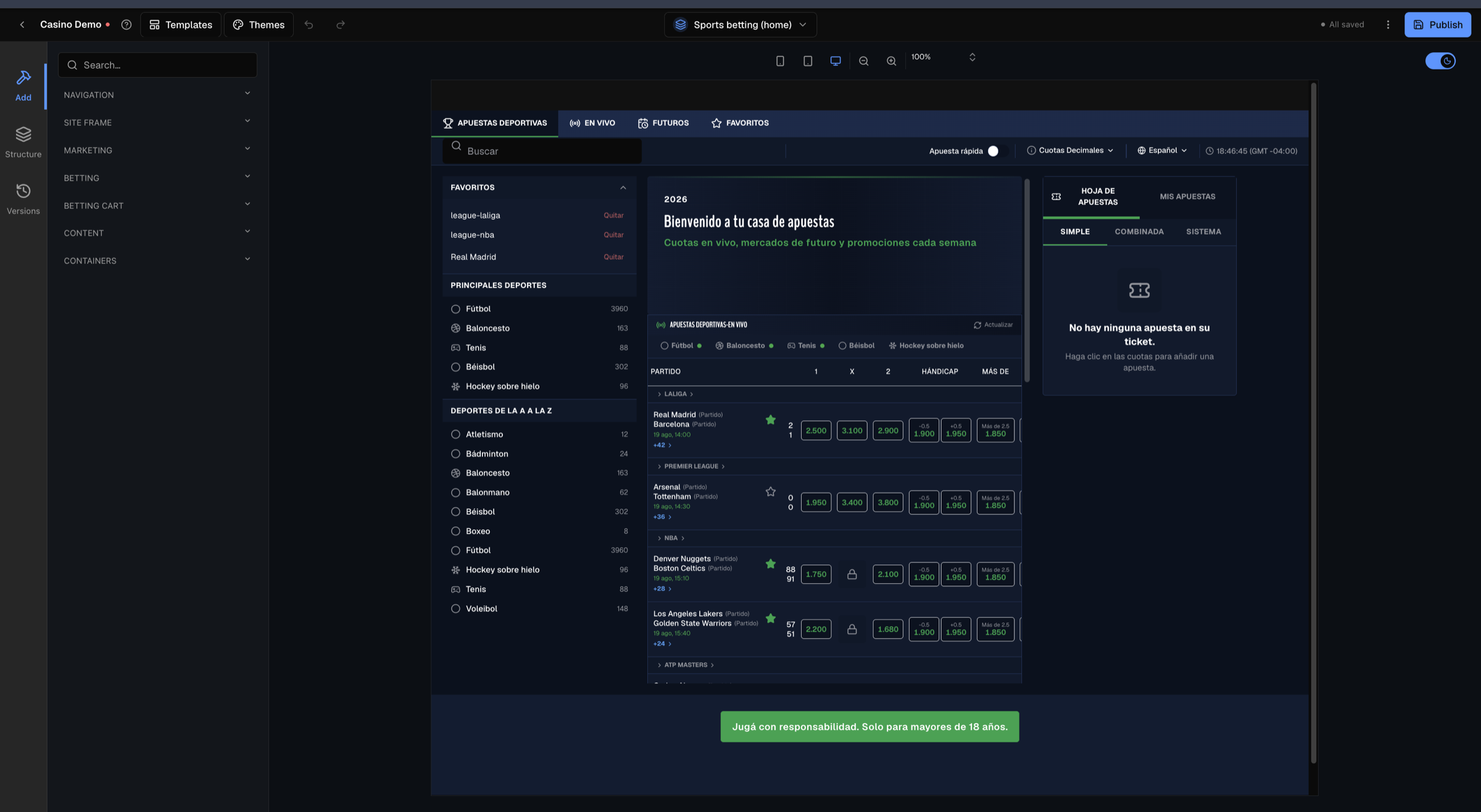
The tab rail
Four tabs, down the left. Each opens a panel beside the canvas, and pressing the lit tab closes the panel again.
| Tab | Holds |
|---|---|
| Add | The blocks this page's template offers, by category, to drag onto the canvas. A search box sits above the list — see Blocks and sections. |
| Structure | The page as a nested list, in the order it sits on the canvas. Click a row to select that block, hover one to find it on the page, fold a branch to get past it, and drag a row to move the block. |
| Versions | The history, and where a restore point is frozen — see Versions and publishing. |
| General settings | What the page takes as a whole: its two typefaces, shared by its landing and its sportsbook — see Themes and typefaces. |
The settings of the selected block are the column on the right, and it is not one of these tabs. It opens when you select a block and closes when you select none, so an empty column is never left standing.
The canvas
The canvas is the page, not a picture of it. Click a text and type over it. Click a block and its settings open on the right. Drag a piece in from Add to place it. Selecting a block also draws a toolbar above it — move it up or down, change its text style, turn it into something else, add a block below it, and, behind More actions, switch it off, hide it on one device, duplicate it or delete it.
Fixtures, odds and balances on the canvas are sample data. The canvas queries nothing: the layout is real, the numbers are a fixed sample. More → Preview is the one surface that draws the page against the real catalogue.
Screen sizes and zoom
The strip above the canvas carries the three widths:
| Device | Width |
|---|---|
| Mobile | 390 px |
| Tablet | 834 px |
| Desktop | 1280 px |
It is not a separate preview. You keep editing at that width, and every setting that varies by screen size edits the device you are looking at. The editor opens on Desktop; most players arrive from a phone, so look at the page on Mobile before you publish.
Beside the devices sit −, + and a zoom list, in that order. Zoom is a magnifying glass and nothing else — it changes no setting. The list offers the steps up to an automatic fit, so a narrower window offers fewer of them.
Light and dark
A sun-and-moon switch is pinned to the right end of that same strip. It repaints the canvas in the other mode so you can check both. It does not change the mode a player arrives in — that is a decision in Themes, and each mode keeps its own colours. See Themes.
Closing the tab with unsaved work
Closing or reloading the tab shows no warning. The editor keeps the unwritten document in that browser's storage and offers it back the next time you open the page, naming when it was kept. Accept it and the editor reopens over your work; decline and it carries on from the last save.
That net is one browser and one page. It rescues a reload and an accidental close on the machine you were working at, and it does not follow you to another.
Leaving without unloading the page — the ← button or the browser's Back button — asks in place instead, before it takes you anywhere.
The guided tours
The editor teaches itself. A tour of the whole screen runs once on a browser's first visit and is replayed any time from the ? in the bar, or with F1: eight stops, from the canvas and the tab rail to the devices, undo and redo, the bar, and what Publish does.
Smaller ? buttons sit on individual surfaces — the settings column, the Versions panel, the Views list, a version's preview, and the site menu's own field. Those never start on their own; press one to walk that panel. A stop whose control is not on screen is skipped rather than shown.
The screen tour remembers it has been seen on that browser, so a new machine plays it again.
Next: Templates — where a page starts.