Back-office basics
The back-office is where the platform is administered: the operators and the pages they run, the people who work on them, what each of those people may do, and everything a page needs before a player reaches it.
This is the orientation page. It covers the first start, signing in, the one control that re-points every screen at once, the accounts you create, and where each part of the operation lives.
Operators and pages
Two words carry the whole back-office, and they are not synonyms.
- The business you work for: the casino, the brand, the company that signed.
- Holds a name, a wallet, and a database of its own when it needs one.
- Has no domain, no logo, and nothing a casino's site could embed.
- Its currencies, countries and languages are one set, taken by every page it owns.
- What answers on a domain, and what a player actually opens.
- Holds its own name, domain, logo and composition.
- Carries the UUID a casino sends to embed it.
- Takes its operator's wallet unless it declares one of its own.
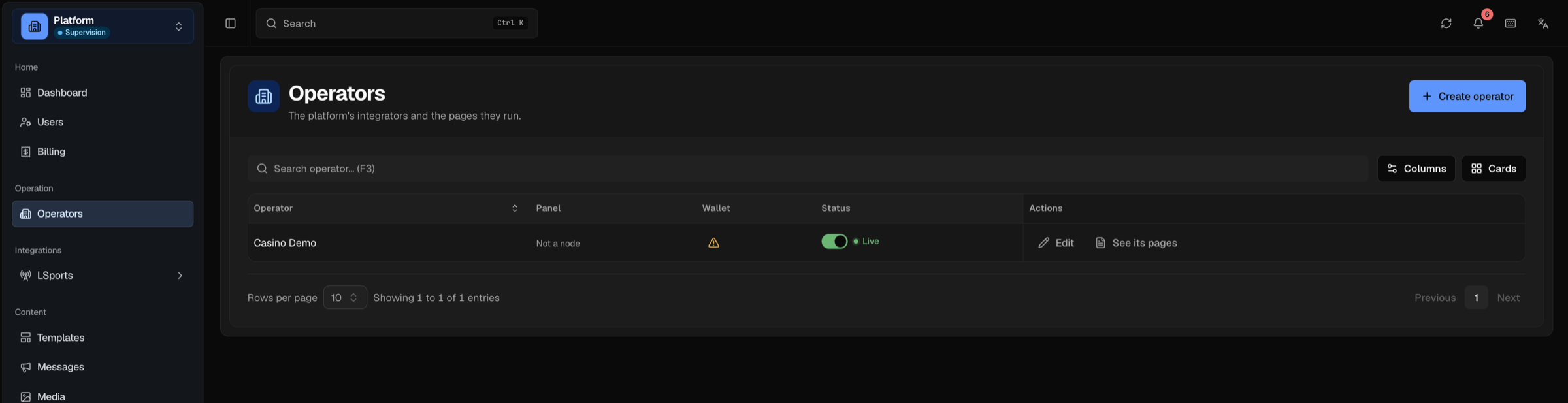
The sidebar entry is Operators. An operator's pages are one click further, on See its pages.
Knowing which of the two you are looking at saves an afternoon. A logo belongs to a page. A wallet usually belongs to the operator, and a page overrides it only by declaring one. Currencies, countries and languages belong to the operator, and changing one changes every page it owns.
The first start
A fresh deployment has no accounts at all, and no seeded password anywhere in its configuration. The first visit shows First run instead of the sign-in form: first name, last name, email, password. Create administrator and sign in creates the platform's first account with the Administrator role and signs you straight in with it.
That door then closes. From the moment one live account exists, the same address is the ordinary sign-in.
Onboarding creates that one account and nothing else: no operators, no pages, nothing composed. Everything after it is work you do — see Your first page.
Signing in
Email and password. A deployment that configures a captcha shows it here and on the first-run form.
| What you see | What it means |
|---|---|
| Wrong email or password | Either one. The form never says which — it would say whether the address is registered. |
| Your account is inactive. Contact your administrator. | The account exists and was switched off. Someone holding Manage users reactivates it in Users. |
| Account temporarily locked. Try again in … minute(s). | Five wrong passwords. The lock lifts on its own a quarter of an hour later; Unlock on the row in Users lifts it at once, which is what the Support role exists for. |
| Enter the code from your authenticator app (or a recovery code). | Two-factor is on for this account. Nothing is signed in until it is answered, and the step waits five minutes before it expires. |
Signing in lands you on Operators. If your session had ended while you were on another screen, you land back on that screen instead.
Staying signed in
You are not asked for your password again while you keep working: the session renews itself in the background, and going offline never ends it.
Left idle, it closes on the window configured in Settings → Security → Admin panel session — from five minutes to a year, or Never expire — and says Session closed due to inactivity.
Sign out is in the account card at the bottom of the sidebar. It ends the session on the server, not only in that browser.
Being asked to prove it is you
Some actions raise Security confirmation before they run. Answer it with your password, an authenticator code or a recovery code.
This never grants a permission your role lacks — it proves you are still the person holding it. A permission that works this way carries a supervised badge in the permissions matrix.
| Action | How long the proof lasts |
|---|---|
| A single action — resetting someone's password, writing a role | About ninety seconds, counted from the moment you answer. Holding the permission runs these with no confirmation at all: only the Database module demands fresh proof every time. |
| The Database module | It asks once, on the way in, and one answer covers the whole module for five minutes. The window keeps sliding while you work inside it, and ends the moment you leave. |
Wait too long and it says The security confirmation expired. Retry and confirm your identity to continue. Nothing was done.
Two-factor itself is enrolled and switched off in Profile, which issues ten one-shot backup codes when you enrol. Keep them somewhere other than the phone: they are the way back in when the phone is gone.
The page you are working on
The card at the top of the sidebar names the page your account is administering. Its label is Active page, and pressing it opens Operators and pages.
- 1Sign inYou land on Operators.
- 2Pick a pageThe card at the top of the sidebar. Each client is a heading; the pick is one of its pages.
- 3The sidebar fillsPlayers, Bets, Limits, Risk and Boosted odds appear.
- 4Every screen followsMedia, the catalogues and the settings refill with that page's own.
The list is a tree, and only one kind of row is a pick.
| Row | What it is |
|---|---|
| The first row | Your own home. Platform staff read Platform, with All pages under it; an operator's staff read their own operator. Picking it clears the page and stands you back at home. |
| A client | A heading, tagged Client. You cannot stand on a client — the platform administers pages, one at a time. |
| A page | The pick. Its client's name is the heading above it. |
The tag under the name on the closed card says where you are standing.
| Tag | Meaning |
|---|---|
| Supervision | Platform staff, no page picked. You read the estate; you operate nothing. |
| Operator | An operator's own staff, no page picked. |
| The client's name | A page is picked, and it belongs to that client. |
Picking a page is a preference, not a login. It re-mints nothing, grants nothing and refuses nothing — which pages you may reach is checked on every request whatever the card says. It is stored on your account rather than in the browser, so it follows you to another machine and survives signing out.
Picking also re-reads every screen at once. A page that no longer resolves — deleted, moved, or outside your reach — is ignored rather than refused: the request runs at your home instead of failing.
Why the sidebar changes
Five entries operate a page and nothing else: Players, Bets, Limits, Risk and Boosted odds. With no page picked they have nothing to act on, so the sidebar leaves them out — absent, not greyed and locked. Pick a page and they are there.
Three different rules take an entry out of the sidebar, and each has its own remedy.
| Why it is gone | Remedy |
|---|---|
| Your role holds none of the permissions the entry needs | Ask an administrator to change your role. |
| The entry is the platform's and you are signed in on a client's own back-office — LSports is the only one. Its address answers Not available here. | None. That section does not exist there. |
| The entry operates a page and none is picked | Pick one in the card at the top of the sidebar. |
Only the sidebar hides those five. The mobile bar, the More sheet and the keyboard palette still list them, and opening one with no page picked shows the aggregated view instead — every page your session reaches, in one list.
Users
Users, in the Home section, is the staff directory. New user asks for the role, who the account belongs to, the person's name, their email and a first password.
The account is created carrying Password change required: the person who created it knows that first password, so it is meant to be replaced. The holder replaces it in their own Profile.
Belongs to is asked only when platform staff create an account, and it is the same picker as the sidebar card — each client a heading over its pages, and the pick is a page. The account belongs to that page's client, never to the page alone, and starts out working on that page. An operator's own staff never see the field: the account is theirs by construction, and an operator's administrators administer every page the operator owns.
Nobody grants more than they hold
You cannot confer authority you do not have. Assigning a role whose permissions go past your own is refused by name — You cannot grant "…" because you do not hold it — and so is writing that permission into a role in the first place. Being allowed to edit permissions is not the same as holding them all.
Three more guards sit beside it.
| Guard | What it stops |
|---|---|
| Self-demotion | Changing your own role to one that drops a permission you currently hold. |
| The last administrator | Taking full access off the only account left holding it in that scope. |
| The onboarding account | Seed user: created at activation, and cannot be edited or deactivated. |
Deactivating an account is the reversible way out: The user will not be able to log in until reactivated.
Roles
Four roles ship with the platform, in one chain. Each builds on the one before it — a role holds its parent's permissions plus its own.
| Role | Builds on | What it adds |
|---|---|---|
| Viewer | — | The root of the chain. Reads everything its scope reaches: the operators and their pages, the accounts, the settings, the bets, the players, the limits and boosts, the catalogues and the billing. It writes nothing. |
| Editor | Viewer | Content: uploading and deleting media, writing the notice a page shows on arrival, sending a message, and editing the sports catalogue. Trading, accounts and settings stay with the Administrator. |
| Support | Viewer | Helping people in: lifting a login lockout, resetting someone's password, and sending a message. It changes nothing else, which is what makes it safe to hand out. |
| Administrator | Editor | Everything within its scope, the composer and the wallet included. |
Support branches off Viewer rather than sitting above Editor: helping someone sign in has nothing to do with editing content, and neither role should carry the other.
The same four serve the platform's staff and every client's. What separates them is never the role but the reach: platform staff cross every client, a client's staff stay inside their own. A client's administrator holds Administrator, confined to that client.
Custom roles are created in Security, not in a screen called Roles — that address is a redirect kept for old links. A custom role inherits one parent and adds to it. The four built-in roles carry a System badge: their name, description, permissions and parent are all fixed in code. A built-in role cannot be edited at all — the back-office answers That role is built in and is managed in code. — so a different chain means a custom role of your own, cloned from the one you want to start at.
Permissions
A role is a bundle of permissions, and a permission is one named thing you may do. Forty-seven of them exist. Each carries a name and a line saying what it covers, grouped by area in Security → Permissions matrix.
You meet them in three places.
| Where | What you see |
|---|---|
| The sidebar | A destination you hold no permission for is not listed at all. |
| The address bar | Typing that address anyway answers No permission and names the permission you are missing. Quote that name when you ask for access — it is the exact thing an administrator has to tick. |
| A role form | Permissions inherited from the parent role are greyed with an inherited badge and need no tick; what you tick is added on top. A whole permission area whose module is still being built carries a coming soon badge on its heading: those permissions save on the role and unlock nothing yet. No area carries it at the moment. |
Holding any one of the permissions a screen lists is enough to open it.
Where everything is
The sidebar has five sections, always in this order.
| Entry | Section | What it holds |
|---|---|---|
| Dashboard | Home | Overview of the operation, all of it read off the bets ledger: metric cards, revenue, how it distributes, and the most recent bets. |
| Users | Home | Back-office accounts and their access. |
| Billing | Home | One row per client with its traffic and what the period invoices; open a client for its summary, terms, invoices, transactions and breakdown, each a page of its own. The platform's default terms live in Settings → Billing. |
| Operators | Operation | Every operator and the pages it runs: creating them, their wallet, their database. The way into a page's editor and into a client's configuration. |
| Players | Operation | The casino players the page has seen. The casino authenticates them and holds their money, so this directory carries neither — but Block players turns a player's access to the sportsbook off and on from this screen, and blocking cuts a live session. |
| Bets | Operation | The bets the page has taken — amounts and outcomes. The money lives at the casino. |
| Limits | Operation | Stake and payout rules over the platform base: per page, sport, league, fixture, market and player. |
| Risk | Operation | Where the open money sits: exposure by fixture, market and outcome. |
| Boosted odds | Operation | The promotions the desk offers above the provider, in three kinds: a single boost (one selection at a better price), a bet builder (several selections of one fixture) and a boosted multiple (one selection per fixture), the last two sold as one bet at the price you write for the whole. A bet builder or a multiple pays when every selection wins; if one is voided, the stake is returned. A promotion marked Super promotion wears the burning badge and the orange frame on the strip; the rest are drawn in green. A promotion is super only when you switch it on, whatever its kind. A promotion is written in one language, the back-office's when you create it, and is offered only to players reading the page in that language: switch the back-office's language to see and write another language's promotions. |
| LSports | Integrations | The data provider's connection, its live behaviour and the catalogue it delivers. The platform's own, one feed for every client. |
| Templates | Content | The starting points a page is composed from: the ones the platform ships and the ones you saved. |
| Messages | Content | The notice a page shows a player on arrival — bonus, promotion, maintenance — and who accepted it. |
| Media | Content | The files a composition draws from, verified server-side on upload. |
| Sports | Content | What the platform sells, in the order it renders and the names it carries. |
| Security | Administration | Roles and the permissions matrix. |
| Audit | Administration | Every action the platform's users performed. |
| Database | Administration | What each collection weighs, and the partitions that keep it lean. |
| Notifications | Administration | The messages the platform has sent to its operators. |
Seven things are in no menu at all — the five below, plus /composer (the same
editor, opened straight on the page in focus) and /integrations (the provider
list, which the LSports breadcrumb walks up to).
| How to reach it | What it is |
|---|---|
| The coin button, top bar | Display currency — the one currency every money figure and filter follows (billing, dashboard, bets, risk), with today's rate against the dollar beside each choice. Remembered on your account. |
| The account card, bottom of the sidebar | Profile — your own account, password, avatar and two-factor. |
| The account card, bottom of the sidebar | Settings — identity, session policy, appearance, languages, currencies, countries and typefaces. |
| Operators → the operator → See its pages → Customize | The page editor. See The editor. |
| Operators → the operator → See its pages → Configuration | The client's currencies, countries and languages. Every page that client owns takes them. |
Four old addresses still resolve, so an old bookmark is not a dead end.
| Typed | Lands on |
|---|---|
/roles | Security |
/platform-settings | Settings |
/content | Templates |
/archive | Database → Partitions |
There is no Content screen, and no page manager. Content is a section heading over Templates, Messages, Media and Sports. A page takes the platform's configuration and composes its own layout in the editor, so the pages, themes and published documents earlier guides put under Content are found there instead.
Next: Your first page — the whole path from signing in to a live page.